

As a user, I want to insert a grid layout into my document and manage its columns, so that I can organize content (images, embeds, files) in a structured multi-column format quickly and without confusion.
Design
Selecting images and converting to grid
Inserting a grid
Acceptance criteria
1. Insert Grid
When user clicks "+", the block menu shows "Grid" under the Layout section
Selecting "Grid" inserts a 3 column grid by default with empty cells
Each empty cell displays a "+" icon indicating content can be added
The grid is inserted at the cursor position within the document
2. Add content to grid cells
Clicking "+" inside a grid cell opens the same block menu (Image, Video, Web Embed, File, Grid, Button)
Selecting "Image" inserts and displays the image within that specific cell
Other cells remain empty with their "+" icons until filled
3. Delete a grid column
User can select and delete an individual grid column
Remaining columns reflow to fill the available width
4. Add a grid column
User can add a new column to an existing grid
The new column appears with an empty "+" state
Existing content in other columns is preserved
5. Create grid from selection
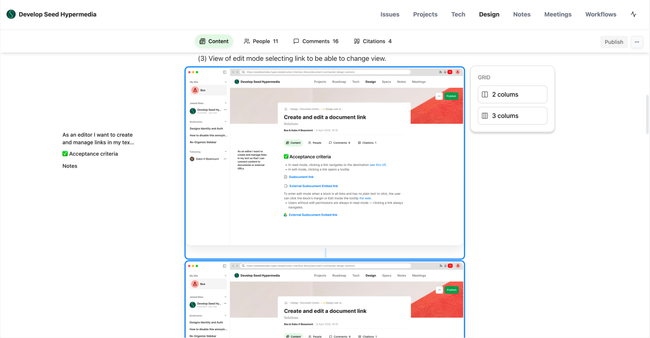
User can select 2 or more images, documents or videos and create a grid from it
User can selects the elements and the list of grid options will appear
Do you like what you are reading? Subscribe to receive updates.
Unsubscribe anytime